Open your BIM model in a browser.
Explore model geometry and properties in the working xeoVision application. Build those viewing workflows into your own business solution with the xeoVision framework.
Verified 18 September 2026
Browser-based BIM viewing is one capability of the xeoVision framework. xeokit SDK provides visualization, while selected xeokit Data Engine processors prepare IFC, Revit RVT/RFA and other engineering files. The working application demonstrates how model geometry, object trees and available properties can be explored together.
What is a BIM viewer?
A BIM viewer opens building and infrastructure models for review without the authoring software that created them. The distinction that matters is between viewing geometry and reading data: a model is only genuinely useful if the objects carry their identifiers, classifications and property sets with them.
Can you see object properties, not just geometry?
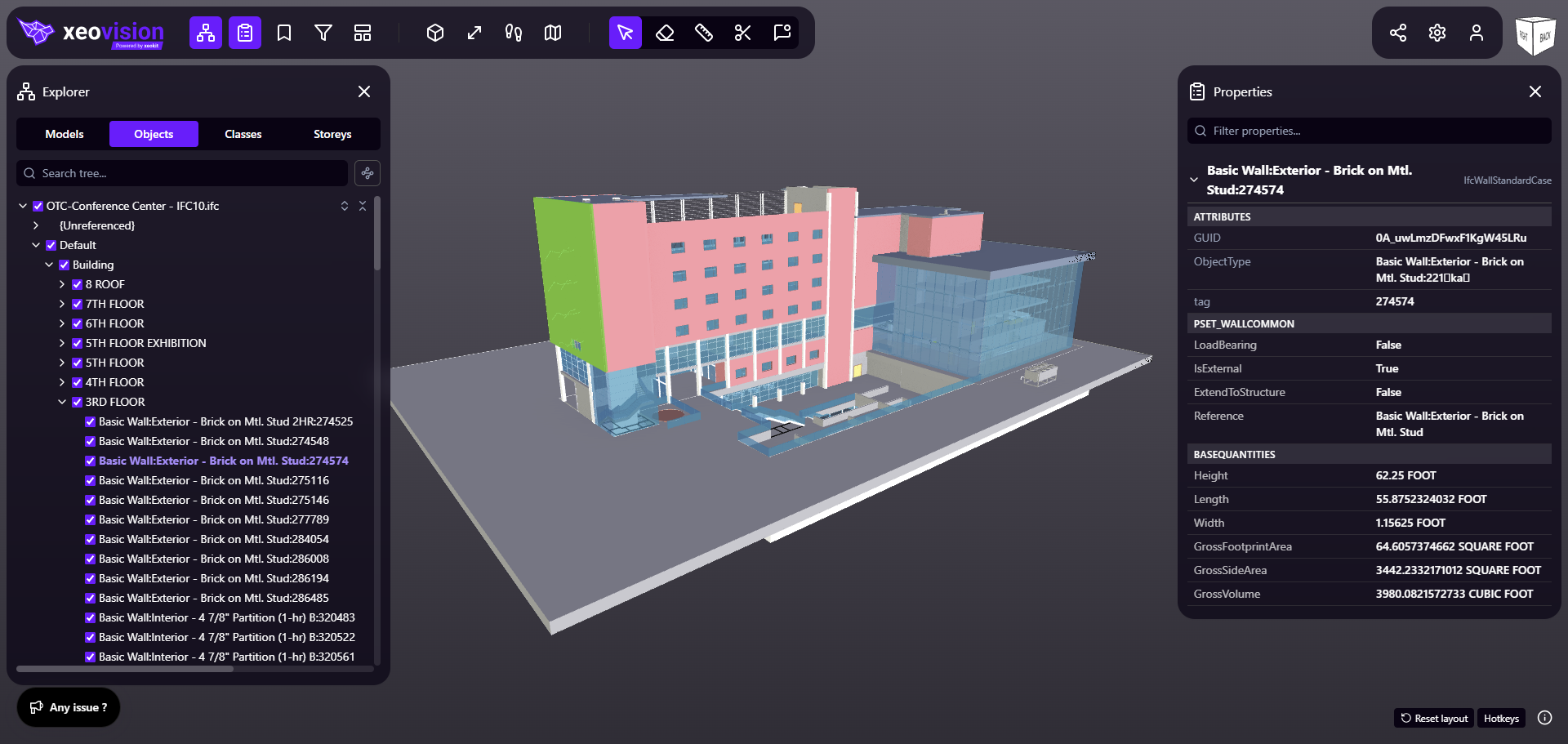
Yes. The working application shows model objects and a properties panel for the current
selection. Depending on the source file and processor, these can include attributes, property
sets such as Pset_WallCommon and
base quantities. Check which information your models provide when defining the review
or data workflow for your own solution.
Which BIM formats can I view?
xeokit Data Engine includes xeoIFC for IFC 2x3, 4 and 4.3, xeoRVT for Autodesk Revit RVT and RFA, and xeoSTEP for STEP. Supported point clouds, OBJ, STL, CityJSON and glTF/GLB use the xeokit SDK. The formats page lists every processor with its current availability.
Can you open several models at once?
Yes. Architecture, structure and building services can be loaded into one federated view, and BIM models can sit alongside a point cloud of the same site. Each model keeps its own tree and properties, so federation does not flatten the source data.
What happens when I choose a file here?
This website selects the file locally and displays its name; it does not upload or process it. Continue to the working application, select the file again, and upload it there to use the available processing and viewing workflow.
Before uploading, review the service's terms, settings and privacy policy for its processing, storage and access arrangements. Use non-sensitive files to evaluate the public application. For a controlled business deployment, agree processing location, retention and access with your team; explore the deployment options.
Choose a model to try
Select a file here, then select it again and upload it in the working application. You can also start from a sample.
Drag & drop your model
IFC, Revit, STEP, point clouds and more
Continue in xeoVision ↗The file goes straight to the application, which does the processing and opens your model.
Or explore a sample
-
IFC models
.ifcExplore a building model and its information. Open IFC sample ↗ Opening in xeoVision… - BIM + point cloud Architecture, structure and a site scan together. Open application ↗ Opening in xeoVision…
-
LiDAR point clouds
.lazSurvey point clouds in the browser. Open application ↗ Opening in xeoVision… -
Textured models
.glbTextured meshes and web-ready 3D assets. Open application ↗ Opening in xeoVision…
Need this inside your own product?
Use the xeoVision framework to embed a project view, adapt an application foundation to your brand, or integrate model viewing with your existing product workflows.
